

You’re halfway through a customer’s checkout when the page stops responding. The browser spins, the payment form disappears, and “connection timed out” appears where a completed order should be. At the same moment, your phone loads other websites normally, which makes the failure look like a website problem.
Sometimes it is. Often it isn’t.
A timeout can start in the customer’s device, Wi-Fi connection, mobile network, ISP route, firewall, DNS resolution, web server, application code, database, or payment provider. Restarting the router might help, but it won’t repair an exhausted PHP-FPM pool or a regional broadband incident. The practical response is to identify which layer stopped answering, then decide whether you can fix it yourself or need your host, ISP, developer, or incident team.
The Moment a Connection Timed Out Stops Being an Inconvenience
A small retailer notices the problem first through a support message. A customer says the checkout failed, then tries again and gets the same result. The retailer opens the shop on a laptop, sees the homepage, and assumes the customer entered something incorrectly. A few minutes later, enquiry forms begin timing out as well.
That pattern matters. The homepage may be cached and lightweight, while checkout calls the database, validates stock, contacts a payment service, creates an order, and sends confirmation. One slow dependency can leave the customer staring at a blank form even though the web server is technically online.

The message hides the failing layer
“Connection timed out” describes a missing response within the client’s deadline. It doesn’t tell you whether the browser never reached the server, the network dropped packets, the firewall discarded traffic, or the application took too long to respond.
For UK businesses, the distinction has operational consequences. Ofcom’s broadband measurements show that latency affects whether a connection feels as though it’s timing out, particularly for interactive services such as video calls and gaming. The regulator says most online activity needs latency below 100 ms for a good experience, while some gaming applications need below 50 ms. Its measurements found full-fibre services with median 24-hour latency as low as 6.4 ms to 6.9 ms in March 2021, and full-fibre packages again had the lowest median latency in March 2023. The same research measured one Virgin Media cable package at 12.5 ms, while ADSL2+ averaged around 24 ms. These figures are reported in Ofcom broadband latency research.
A fast download speed doesn’t cancel out delay, packet loss, or a congested route. A connection can download a large file quickly while taking too long to establish or complete a series of smaller requests.
Practical rule: Treat the error as a symptom, not a diagnosis. Capture the time, affected URL, device, network, and action that failed before changing anything.
The first response should protect evidence and customers. Check whether orders were created despite the browser error, pause repeated retries if payments may have been submitted, and put a clear message on the site or status page. A timeout that affects one visitor is a support ticket. A timeout that blocks checkout is a resilience incident.
What a Connection Timed Out Error Actually Means
A browser request passes through several separate stages. The device resolves the website name, opens a secure connection, sends an HTTP request, waits for the server, and then waits for the application and its dependencies to finish. A failure at any stage can eventually be represented by the same unhelpful browser message.
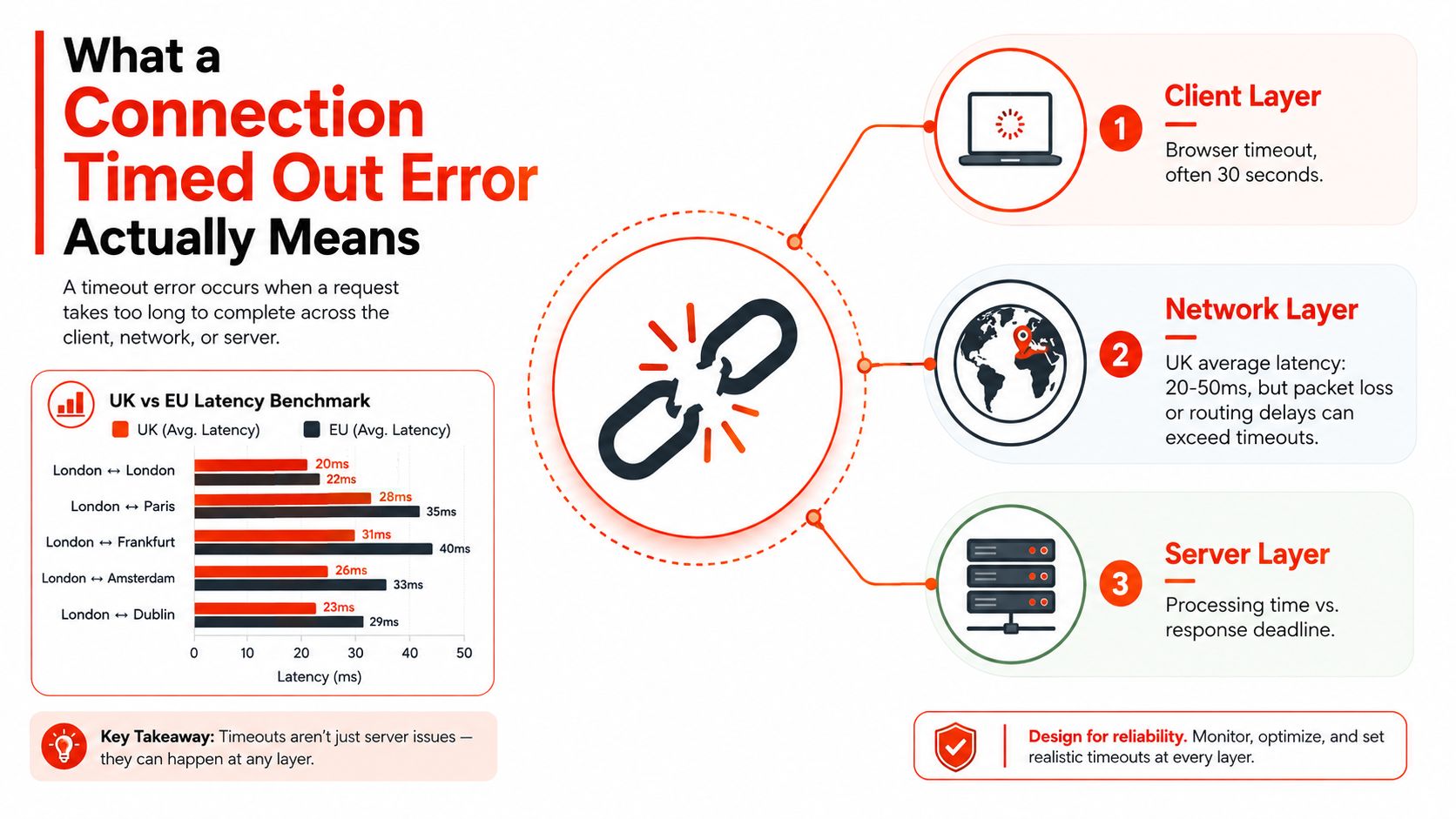
Client and network layers
At the client layer, a browser may stop waiting after its own deadline. A damaged cache, a browser extension, local security software, a corporate proxy, or a device-specific Wi-Fi problem can prevent a request from completing. Testing a private browser window and a second device helps separate the site from the original client.
The network layer includes the local router, Wi-Fi, mobile network, ISP, routing exchanges, and the connection to the hosting facility. Uswitch reported average UK response times of around 42 ms for 4G, 61 ms for 3G, 33 ms for 5G, and 19 ms for Wi-Fi. Its research identified the worst UK area at 122.8 ms, in Na h-Eileanan Siar, and found that seven of the ten fastest areas for latency were in London while five of the ten slowest were in Scotland. The regional figures appear in Uswitch’s UK mobile network speed statistics.
That spread explains why a site can work for a team in London and fail intermittently for customers elsewhere. Packet loss and routing delays are often more important than the headline speed shown by a broadband test.
Server and application layers
At the server layer, the web server may accept a connection but wait too long for PHP, a database query, an external API, or a file operation. Reverse proxies and load balancers also impose their own response and idle limits. If one layer gives up before another finishes, the user sees a timeout rather than a useful application error.
Ofcom’s broader guidance is useful here because it connects latency to user experience, not just network engineering. As delay rises, browser requests and page loads become more likely to stall long enough for users to perceive failure, especially when several dependent requests run together.
The right question is therefore not “Is the website up?” It’s “Which request failed, from which network, after waiting for what dependency?”
Diagnostic Checks You Can Run in Under Ten Minutes
Start with a clean record. Note the exact URL, the time, the device, the network connection, and whether the failure affects the homepage, login, checkout, or an API request. Don’t clear logs or deploy a change until you’ve saved the browser error and, if possible, a screenshot.
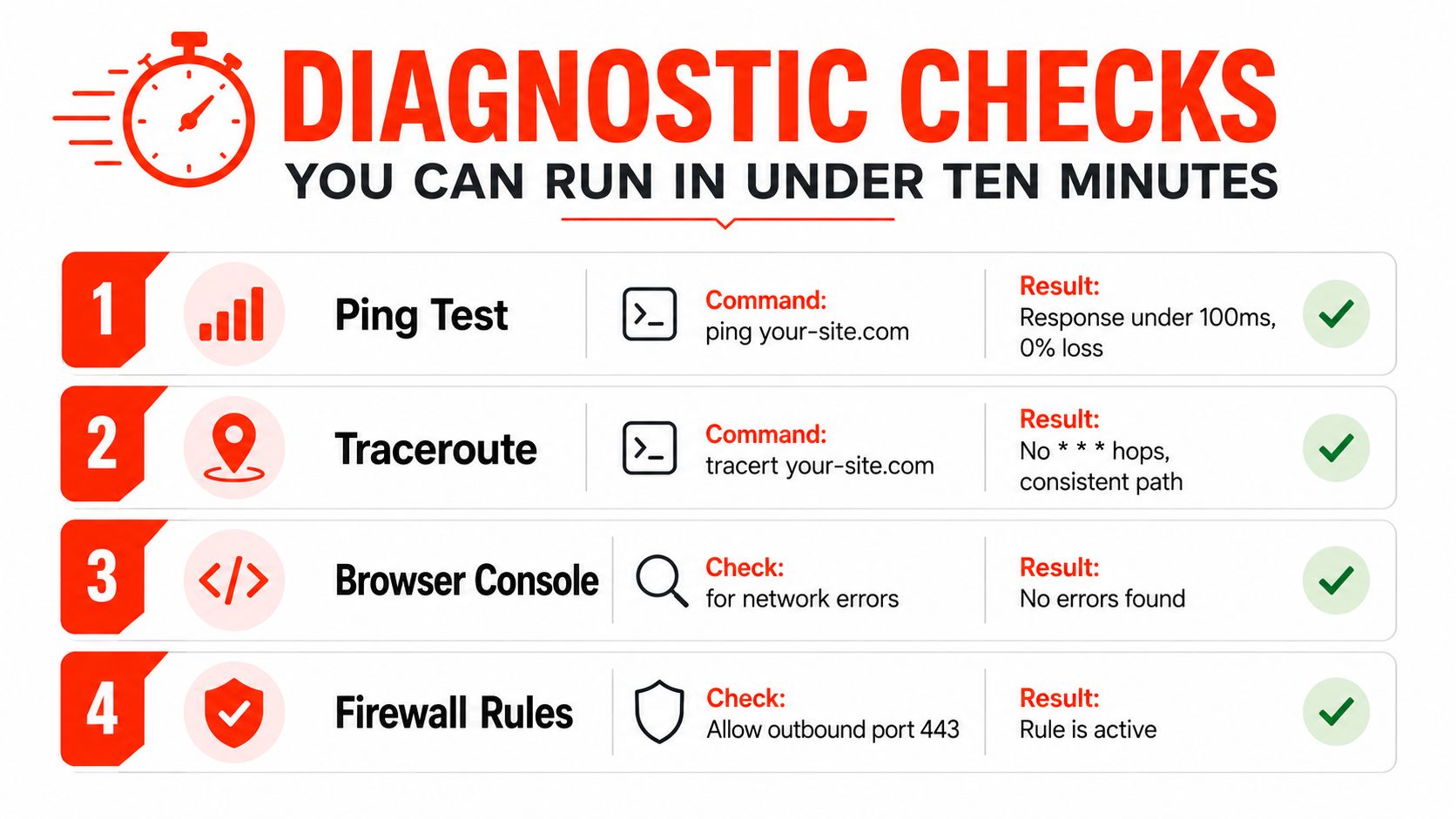
Start outside the application
Test another path. Open the site in a private window, then try a second browser or device. Switch from Wi-Fi to mobile data, or use a trusted mobile hotspot. If mobile data works while Wi-Fi fails, focus first on the router, local DNS cache, Wi-Fi, proxy, or ISP route.
Check the basic response. On Windows, open Command Prompt and run
ping your-site.com. The supplied diagnostic benchmark uses a response under 100 ms with 0% packet loss as the healthy result. Ping isn’t a complete website test, and some servers ignore it, but packet loss or wildly inconsistent responses justify checking the network path.Trace the route. Run
tracert your-site.comon Windows. A consistent path without repeated* * *hops suggests that traffic is progressing, although individual routers may legitimately suppress traceroute replies. If the route stops close to your network, test another connection before blaming the host.Test the secure port. HTTPS uses TLS, previously known as SSL. UK government service guidance requires web services to be accessible only through secure connections and recommends an HSTS policy using
Strict-Transport-Security: max-age=31536000, includeSubDomains; preload;. Review GOV.UK guidance on using HTTPS when checking the site’s secure configuration.
Look at the browser and host evidence
Open the browser’s developer tools with F12, select Network, reload the page, and identify the request that remains pending or returns an error. The request name often reveals the layer, such as a payment endpoint, login call, image origin, or API route. In Console, look for blocked requests, certificate errors, mixed-content warnings, and CORS failures.
On the server, check the web server error log, PHP error log, application log, and database log for the same timestamp. A useful result is not merely “the page eventually loaded”. It’s a matching server entry that shows whether the request reached the host and what consumed the waiting time.
If the external check fails but internal logs show nothing, investigate routing, firewall rules, DNS, or the hosting edge. If the request appears in the logs and ends with a slow upstream or worker exhaustion message, stop changing the customer’s device. The fault is now inside the service path.
Platform-Specific Fixes That Resolve the Real Cause
Blanket fixes cause damage when they change several variables at once. Apply one setting, reproduce the failing request, and inspect the log at the same timestamp. Take a configuration backup first, and ask your host to apply server-level changes if you don’t have root access.
WordPress
WordPress timeouts commonly appear when a plugin performs a large backup, security scan, import, image process, or remote API call during a web request. Increase the memory limit in wp-config.php only where the host permits it, then temporarily disable heavy backup and security plugins one at a time. Raise PHP max_execution_time through .user.ini or the hosting panel rather than editing a value your platform will overwrite.
For sites where the same pattern recurs, managed WordPress hosting can move responsibility for platform monitoring and maintenance away from the business owner.
Single line to change: max_execution_time = 300
Success in the log: the request completes without a PHP maximum execution time message, and the application records a completed action.
cPanel
Open MultiPHP INI Editor, select the affected domain, and review max_input_time and max_execution_time. Raising both values can help long forms and processing requests, but it won’t fix a database lock, exhausted CPU, or a third-party API that never answers.
Use Metrics, then Errors, or open Error Log in cPanel after reproducing the issue. Look for PHP fatal errors, upstream timeout messages, and resource-limit notices before deciding the setting worked.
Single line to change: max_input_time = 300
Success in the log: the request reaches application completion without an input-time limit error.
Nginx and Apache
For Nginx Proxy, set fastcgi_read_timeout 300s; in the relevant server or location context, then reload Nginx using your host’s approved process. For Apache, review ProxyTimeout and RequestReadTimeout. Match the application timeout with PHP-FPM’s request_terminate_timeout, otherwise PHP-FPM can kill a request before Nginx or Apache receives a response.
Longer limits are not automatically better. They can keep stuck workers occupied and make an outage worse, so pair them with query optimisation, queueing, caching, or a background job where appropriate.
Single line to change: fastcgi_read_timeout 300s;
Success in the log: Nginx stops recording upstream read timeouts for the tested route, while PHP-FPM records a normal completion.
Cloud hosts
On AWS, DigitalOcean, and Azure, check security groups and network rules for traffic that must remain open for the application. A security group blocking a required connection produces silence, not a helpful application error. AWS Application Load Balancers have a 60-second idle timeout, so a backend that sends no data during a long operation can be disconnected even while the instance continues working.
Also check PHP-FPM pool capacity. If pm.max_children is exhausted, new requests wait in a queue and eventually hit a proxy or browser deadline. Increase capacity only after checking memory, because adding workers without headroom can replace timeouts with swapping or process kills.
Single line to change: request_terminate_timeout = 300s
Success in the log: PHP-FPM no longer terminates the route before the proxy deadline, and worker saturation is absent during the test.
Distinguishing Your Network From a UK Provider Outage
A timeout affecting one laptop points to a local fault. Test the site from a phone using 4G or 5G, then try another browser or device. If mobile access works, investigate Wi-Fi, local DNS, browser settings, or a corporate proxy. If every device on the same broadband connection fails while a hotspot works, the ISP path becomes more likely. Failure from independent testers in different regions shifts attention to the host, upstream provider, or a wider incident.
UK connectivity varies by location. Ofcom’s Connected Nations 2023 report says around 61,000 premises still could not access decent broadband. Local instability and packet loss therefore deserve attention alongside server health. The wider access picture is covered in UK broadband access statistics.
Quick comparison of where the timeout is happening
| Scope | Symptom | 30-Second Check | Who Fixes It |
|---|---|---|---|
| Your device or network | One device fails, another connection works | Try private browsing, another device, and mobile data | You, your IT provider, or local network support |
| ISP path | Several devices fail on one broadband service, hotspot works | Run tracert your-site.com, then compare the route from another connection | Broadband provider |
| Wider incident | Testers in different regions report failure | Check the host status page and Downdetector, then compare external probes | Host, ISP, upstream provider, or incident team |
Use route evidence rather than complaint volume alone. If your traceroute stops after hop four and reports point to the same ISP route, repeated router restarts will not repair the fault. Give the provider the timestamp, destination, affected connection, and traceroute output so it can investigate the route.
Large incidents can affect broadband, 4G, and 5G together. A Vodafone outage generated more than 130,000 reports within hours and disrupted service nationwide, according to The Telegraph’s Vodafone outage coverage. Verify the incident, check service updates and any applicable compensation, then tell customers what is known. Do not spend the outage repeatedly resetting devices.
Keep hosting responsibility clear. A provider offering web hosting for small businesses should identify whether the failure sits at the edge, origin, network, or application layer. That boundary determines whether you continue local tests, contact the ISP, or escalate to managed hosting support with logs and timestamps.
Preventing the Next Timeout Before It Costs You Sales
A green homepage check proves very little. A customer can still fail at login, checkout, account creation, or a payment callback while the landing page returns normally. Monitoring should reproduce the actions that generate revenue, from locations that resemble your UK audience.
Use external uptime checks from UK and EU probes, then compare results with an internal monitor. GOV.UK monitoring guidance recommends internal and external checks, and its Pingdom setup uses one-minute probes with a five-minute alert threshold to avoid false alarms caused by brief spikes. The method is described in GOV.UK monitoring guidance, though your alert policy should reflect the business impact of the route being monitored.
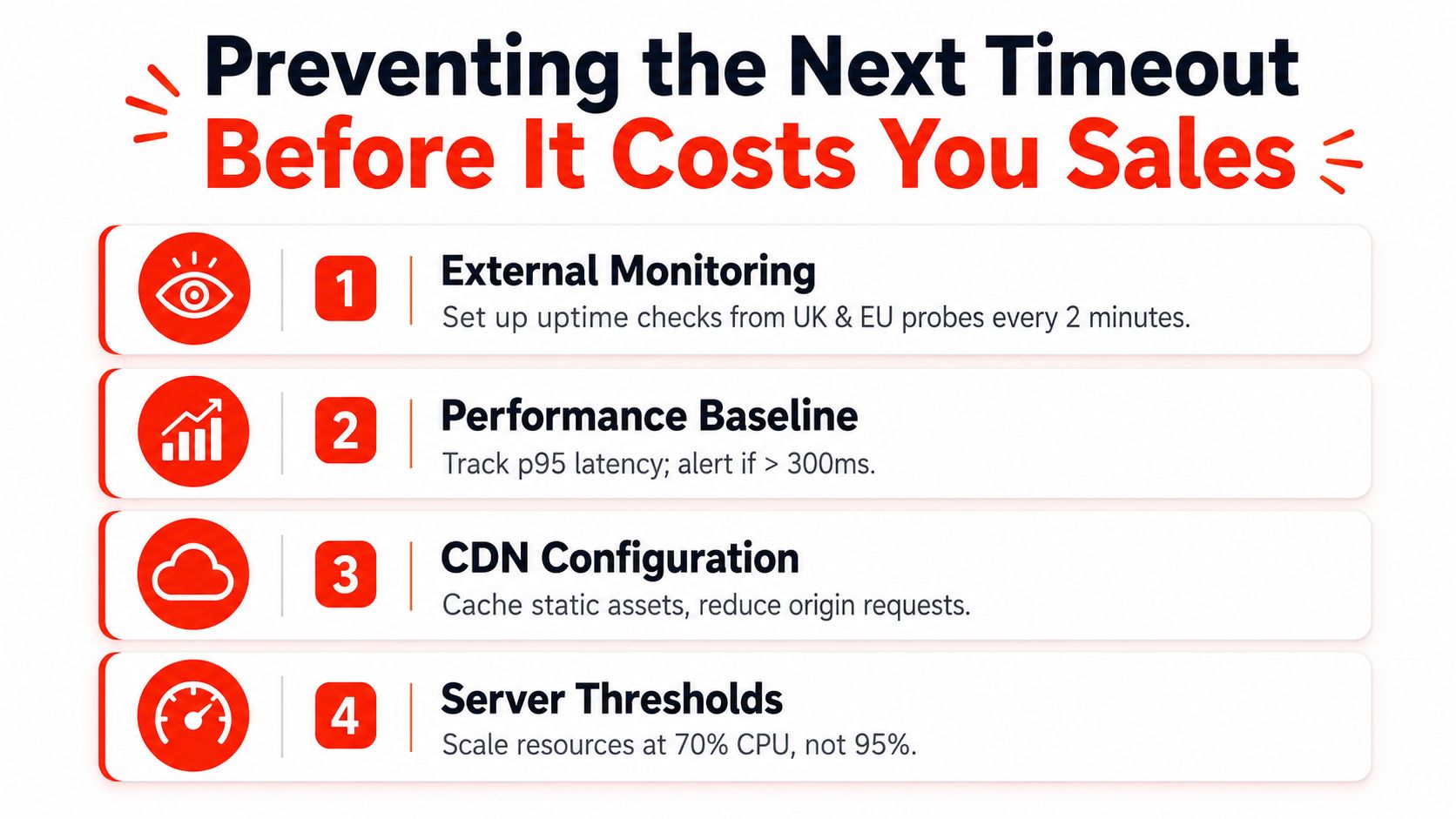
Monitor transactions, not just availability
Create synthetic journeys for the homepage, login, product search, checkout, and enquiry form. Use a test payment path where your payment provider supports it. Record the response time and failure stage, so the alert says “checkout API exceeded its deadline” rather than “website down”.
Capacity planning needs the same discipline. Size PHP-FPM pm.max_children above peak demand rather than average demand, and keep database connection pools consistent with the number of workers. A pool that’s too small queues requests. A pool that’s too large can consume memory and destabilise the host.
Keep slow origins away from customers
Cache static assets through a CDN and use origin shielding where the platform supports it. This reduces repeated requests reaching the application server, but it doesn’t cure slow uncached checkout or account requests. Exclude personalised and transactional responses from careless caching, and test invalidation before relying on it during a release.
Document the response in a runbook:
- Record evidence: Save timestamps, failing URLs, request IDs, screenshots, and affected regions.
- Name owners: List the host, ISP, developer, payment provider, and internal escalation contacts.
- Attach logs: Include web server, PHP-FPM, application, database, load balancer, and monitoring excerpts.
- Define communication: Prepare a status update and customer message that explains what’s unavailable without exposing internal details.
UK outage research reported that 22.4 million people, or 41 per cent of users, experienced at least one broadband outage in the previous 12 months, with 15 million affected for three hours or more and 238.7 million total outage hours, according to the 2025 UK broadband outage report. Those figures make timeout readiness a business control, not an optional technical refinement.
When to Escalate and What to Hand Over
Stop DIY troubleshooting when the timeout persists after client, network, firewall, and application checks. Escalate immediately when several sites on the same host fail, multiple customers report the same route, you suspect a denial-of-service attack, or incidents recur despite temporary configuration changes.
Delay has a cost even when you can’t calculate it precisely. Customers lose confidence when a form fails without explanation, and retailers risk duplicate payment attempts when checkout responses disappear. A managed response earns its value by shortening diagnosis, preserving evidence, and putting the right owner on the problem.
Send evidence that shortens the first response
Give the recipient a compact handoff:
- Incident timing: Include the first observed failure, latest failure, time zone, and whether it’s ongoing.
- Scope: State the affected URL, user action, device types, networks, and regions.
- Network tests: Attach
tracertand MTR output from a failing connection and a working connection. - Server evidence: Include matching web, reverse-proxy, PHP-FPM, application, database, and load-balancer log lines.
- Change history: List recent deployments, plugin or CMS updates, configuration edits, and unusual traffic.
- Security context: Mention firewall changes, suspicious traffic, and any provider alerts.
Send network, hardware, load balancer, and upstream routing issues to the hosting provider. Send application code, database queries, plugin conflicts, and checkout logic to a developer or agency. For recurring operational work, UK website maintenance services can provide a defined route for updates, monitoring, and support rather than leaving each incident with whoever happens to see the alert.
A concise support email
Subject: Connection timed out on checkout, started at [time]
Message: “Checkout requests are timing out for [URL] from [network and region]. The homepage [works or fails], mobile data [works or fails], and the issue affects [scope]. tracert and MTR outputs are attached, along with server log lines from [time]. The latest deployment or configuration change was [detail]. Please confirm whether you can see an upstream, proxy, worker, firewall, or application failure and advise the next action.”
1stNet.AI website team can launch your website fast with a domain, SSL, hosting, and maintenance included, with the accelerated build process capable of taking a site live within 24 hours. 1stNet AI Ltd also offers an interactive live chat system for website design, ongoing support, and a 30-day money-back guarantee, so visit 1stNet AI Ltd or call 0204 577 2255 to discuss a website setup designed to reduce timeout risk.