
You click a link, submit a form, or refresh a page, and instead of your website loading normally, a plain 400 Bad Request page appears. It feels abrupt and unhelpful, especially when you’ve got customers waiting and no clue whether the fault sits with your browser, your website, or your hosting setup.
The good news is that a 400 Bad Request is usually a communication problem, not a full website collapse. It’s like a postal worker picking up a letter and saying the address is unreadable, so the letter can’t be delivered. The message is annoying, but it also tells you something useful; the request itself needs checking.
Table of Contents
That Frustrating ‘400 Bad Request’ Error
You’re trying to open a page, submit a contact form, or upload a file, and the website returns a blunt error page. No helpful explanation, no friendly next step, just a code that looks like it was written for engineers and not for business owners.
That’s what makes a 400 Bad Request so frustrating. It doesn’t usually mean the whole site is offline; it means the request that reached the server didn’t make sense in the form it arrived in. The server received something, but it couldn’t understand it well enough to continue.
A real-world way to think about it
Sending a parcel with a smudged, incomplete, or symbol-packed label that the post office cannot read serves as a useful comparison. The parcel itself might be fine and the destination valid, but the instructions are broken. The server reacts similarly when it receives a malformed request from a browser, form, or application.
That’s why the error often appears at awkward moments, such as after a site update, a new form launch, a pasted link, or a browser session that’s gone stale. The actual cause can lie with your device, your browser, a security layer, or the website itself, so the first job is not to panic; it’s to sort the problem into the right bucket.
Practical rule: when a site shows a 400 bad request, assume the request format is the first thing to check, not the whole infrastructure.
A useful baseline is the HTTP semantics standard, where 4xx codes indicate client-side request problems, and 400 specifically indicates that the request was malformed or had invalid syntax. That’s why troubleshooting starts with the request details rather than jumping straight to a server rebuild, and why production debugging often begins by checking raw request data and logs to find the exact fault as described in IIS troubleshooting guidance.
Understanding the 400 Bad Request Error
A 400 Bad Request means the server received a request, but it was not readable enough to process. The message is short, but the problem it points to can be very practical, like a form submission with broken formatting, a pasted link with stray characters, or a browser sending stale data.
Client error versus server error
The key distinction is simple. A 4xx response usually points to something in the request, while 5xx responses point to a failure on the server side. If the request is malformed, the server can still be healthy and reject it because it cannot make sense of the instructions it was given.
A confused postal worker is a good comparison. If a letter arrives with missing numbers, odd symbols, or an address that cannot be routed, the mailroom does not need to be broken for the delivery to fail. The same thing happens when a browser, form, or app sends a request that the server cannot parse.
What the server is rejecting
The server may reject a request due to invalid syntax, a malformed URL, bad characters, incorrect formatting, or a query string that does not conform to the expected rules. That is why the first checks are usually small and specific, like the URL, encoding, headers, and form data, before anyone starts blaming hosting or deployment.
A helpful way to frame it is this. If the browser sends a request that the server cannot decode, the server is doing what it should by refusing it. In HTTP/1.1, a 400 Bad Request is returned when the request is malformed or cannot be understood, so triage starts with URL syntax, per cent-encoding, header construction, and generated query strings before anyone blames the infrastructure, as explained in SiteGround’s HTTP error guide.
Once you see it as a readability problem, the next question becomes easier: did the browser or form send the wrong message, or is the site itself building the request badly?
Common Causes You Can Easily Fix
These are the fixes you can try without touching code, server settings, or hosting panels. If the error is caused by your browser or a bad link, you may solve it in minutes.
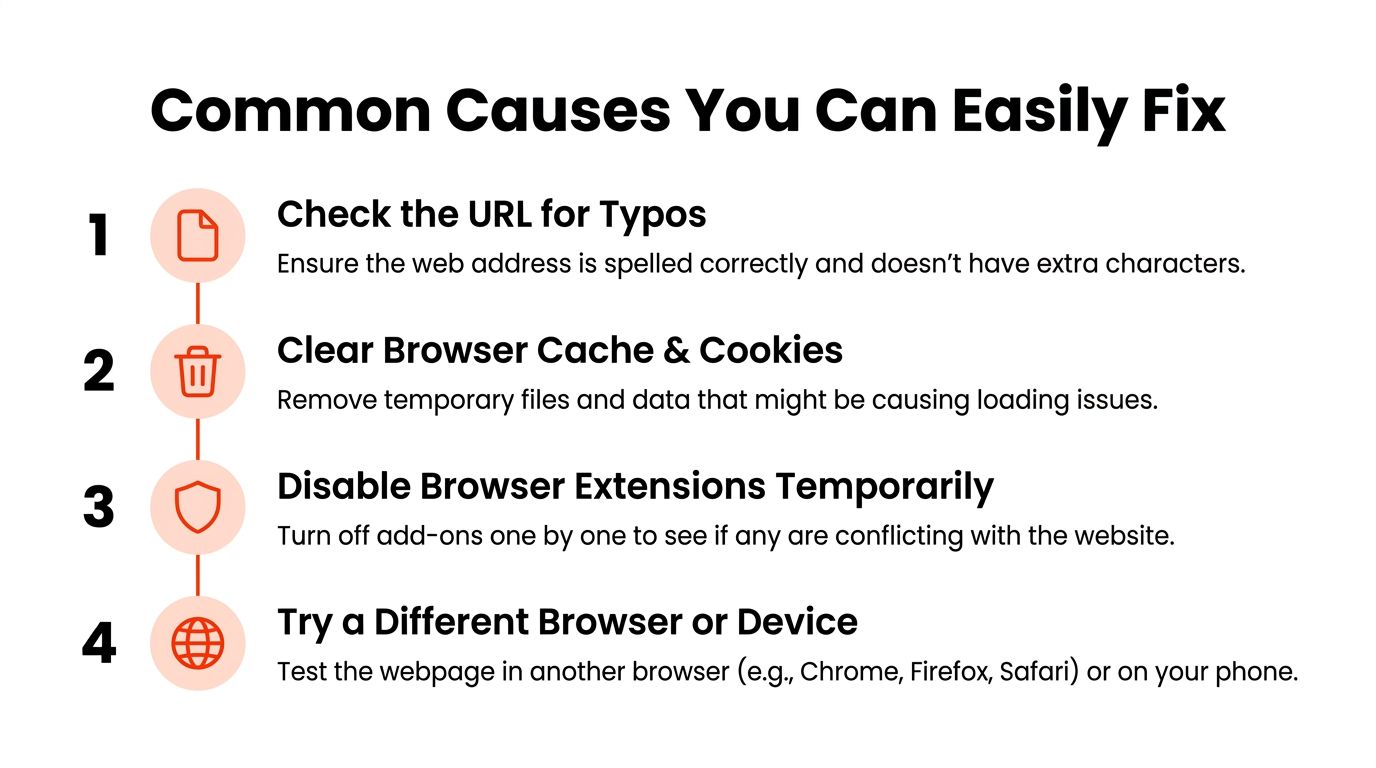
Check the URL carefully
Start with the address bar. Look for missing letters, extra punctuation, extra spaces, copied tracking text, or a pasted URL that breaks halfway. A single wrong character can turn a valid request into one that the server can’t understand.
If the link came from an email, message, or document, copy it again and compare it with the source. Broken pasted links are a common launch-time headache, especially when a page has been copied from another system or edited by hand. In practical terms, this is the fastest thing to rule out.
Clear browser cache and cookies
Old browser data can cause a page request to return the wrong version. Clearing cache and cookies gives the browser a clean slate, which often helps when a site worked earlier but now throws a 400 Bad Request after a session change.
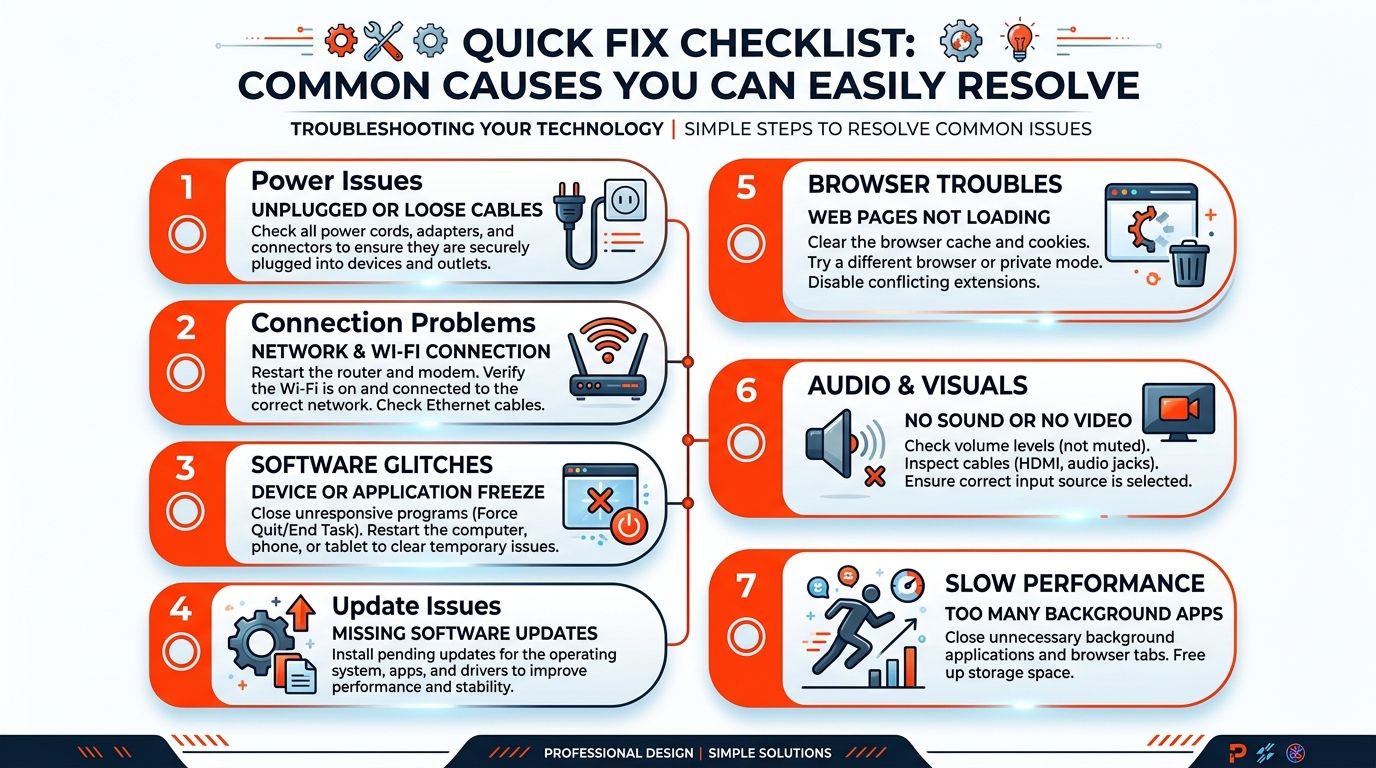
If you’d rather not clear everything at first, open the page in a private or incognito window. That bypasses much of the stored browser state and helps you test whether the issue sits in your current session. Browser-side issues are a common cause of 400 errors, and clearing cookies and cache, using a private window, disabling extensions, and checking for browser updates are all standard troubleshooting steps as noted in Elementor’s troubleshooting guide.
Disable extensions temporarily
Some extensions modify page requests, block scripts, or interfere with form submissions. If the error disappears when extensions are disabled, one of them is likely altering the request before it reaches the website.
Don’t worry about identifying the culprit immediately. Just switch them off, test again, and only re-enable them one by one if the page starts working. That keeps the process simple and avoids changing too many variables at once.
Try another browser or device
If the page works elsewhere, the issue is probably local to your setup rather than the website itself. A different browser, phone, or laptop gives you a clean comparison point without needing technical access.
This is especially useful when the problem appears only on one machine. Some browser updates, stale cookies, or extension conflicts stay hidden until you compare the same link in a second environment.
Check uploads and form fields
A file upload can fail if the file is too large for the website’s limit, or if the form data arrives in a way the server doesn’t expect. That’s common with images, media uploads, lead forms, and product submission forms.
If a contact form triggers the error, try removing attachments, shortening unusual fields, or submitting a simpler version first. Practical troubleshooting guides also point out that corrupted or oversized cookies can trigger the problem, and that file uploads may fail with 400 if they exceed the website’s size limit, as explained in Elementor’s guide.
Exploring Deeper Technical Causes
When the quick browser fixes do not solve the error, the next place to look is the request itself. You do not need to be a developer to follow the basic logic, but it helps to know what your web team is checking and why.

Malformed URLs and broken encoding
A URL can look right at first glance and still be invalid. Spaces, special characters, and poorly encoded characters can make the address unreadable to the server, much like a postal worker receiving a letter with an address written in a format the sorting system cannot recognise.
Copied links, auto-generated links, and API calls deserve extra attention because they are easy places for small formatting mistakes to slip in. If a system dynamically builds a URL and omits proper encoding, the request may fail before the server even reaches the main page logic. A 400 Bad Request often appears because the server cannot parse the request correctly. Fixing the request before sending it is the safest solution, as Semrush recommends.
Headers and request format problems
Every web request carries extra instructions, such as headers. If those instructions are too large, oddly structured, or not what the server expects, the request can be rejected before the page itself loads.
A simple analogy helps here. If the main message is the letter, the headers are the paperwork attached to it. When the paperwork is messy, too long, or contradictory, the recipient may refuse the delivery even if the envelope looks fine. Server logs and request traces help your web team determine whether the break occurred in the browser, a proxy, a firewall, or at the application layer.
Launch-time risks for businesses
Business owners often run into this after a site launch. A redirect change, an altered HTTPS setting, or a form endpoint rejecting the payload can cause a site to work in staging but fail after you launch it. The error can look generic on the surface, but the problem is often a request path that no longer matches the site’s rules.
The wider setup matters too. Domain, SSL, and hosting need to be aligned so requests reach the right place and are accepted in the right format. If you are reviewing that side of the setup, see this website setup overview for alignment between the domain, SSL, and hosting.
A Step-by-Step Diagnostic Process
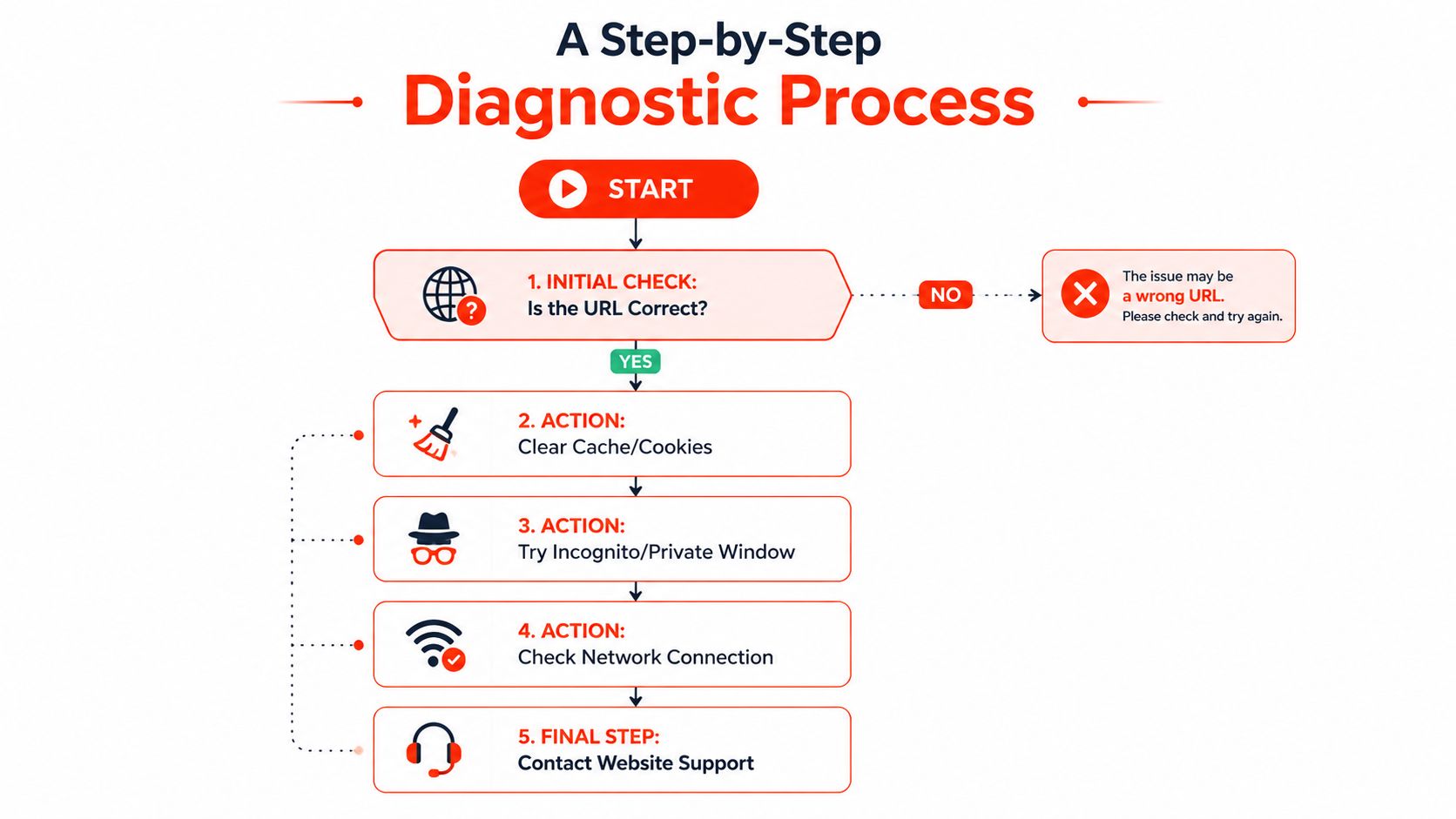
The fastest way to handle a 400 Bad Request is to avoid guessing. Start with the simplest checks, then move outward until you know whether the problem is local, shared, or clearly on the website side.
Start with what you can control
First, confirm the exact URL, then test the page in a private window. If that doesn’t help, clear cache and cookies, then try again in another browser. These steps remove the most common local causes without touching the website itself.
If the page still fails, use another device on the same connection. This comparison helps you determine whether your browser profile or a broader issue is causing the problem. When one device works, and another doesn’t, the request path is probably not the issue; the local setup is.
Check whether the issue is shared
Next, ask a colleague or customer on a different device to try the same page. If they see the same error, the case is no longer about one browser session. That makes it more likely that the website, its security rules, or its application layer is rejecting the request.
If nobody else can reproduce it, the fault is probably local to your own browser, cookies, or extension set. That is useful because it prevents wasted time arguing with a site owner about a problem that sits on your side of the connection.
Useful habit: copy the exact page address, the action you took, and the exact wording of the error before you report it.
Gather the right details for support
When you contact support, include the exact URL, what you were doing, and whether the issue occurred on page load, during form submission, or during a file upload. Add the steps you’ve already tried, because that immediately rules out the obvious paths and saves everyone time.
This is also the point where a short video or screenshot helps, especially if the page only fails after a specific click. A support agent can’t inspect what they can’t see, so precise notes matter more than long explanations.
What to Do When Visitors Report a 400 Error
When multiple visitors report the same error, stop treating it like a single-user browser issue. At that point, the problem is much more likely to lie in the website’s request handling, a proxy rule, a security filter, or a form-processing script than in a single person’s cache.
Read the pattern before you change anything
Look at where the error happens. If it appears on a contact form, after a redirect, or only on a certain page, that pattern tells you where to start. When a 400 error affects many visitors, the server is usually rejecting a specific type of request, not multiple browsers malfunctioning.
That is where logs become valuable. Administrators often inspect request traces and review HTTP error logs to identify the exact bad request, because raw logs show what the browser sent and where the server rejected it, as explained in Microsoft’s IIS troubleshooting guidance.
Common server-side triggers
Security rules can be too strict, redirect rules can conflict, and form handlers can reject input that looked valid to the user. Sometimes the request is fine in principle, but a protection layer, a plugin, or a validation rule decides it doesn’t meet the expected format.
That’s why repeating the same browser-side advice won’t help if the error affects everyone. If the same page fails across devices and networks, the website owner or hosting provider needs to inspect logs, rule sets, and application logic. General fix guides do mention server logs and configuration checks, but they often stop short of giving a clear triage framework for separating user error from infrastructure misconfiguration, as noted in Postman’s status-code guide.
Why managed help matters
A managed support partner traces the request chain, reviews error logs, and determines whether a launch change, security rule, or form endpoint caused the issue. If you’re already paying for ongoing maintenance, that sort of diagnosis should feel like a service, not a separate emergency.
For businesses that want the website looked after rather than just hosted, website maintenance support can be the difference between a short interruption and a long, messy afternoon.
Don’t Let Website Errors Slow Your Business
A 400 Bad Request is usually a request problem, not a total outage. In many cases, the fix is simple: clear the browser state, check the link, or try a different device. If those don’t work, the next step is to gather exact details and hand them to someone who can properly inspect the request path.
That process is what saves time. You stop guessing, avoid repeated changes, and find out whether the issue lies with your browser, your network, or the site itself. For business owners, that matters because every confusing error steals attention from sales, leads, and customer service.
If you want a website partner who can handle hosting, support, and the messy bits of troubleshooting, see the best web hosting for small businesses. It’s far easier to keep a site reliable when someone is already watching the technical layers behind it.
1stNet AI Ltd builds, hosts, maintains, and secures your website by including SSL and domain setup, so you never have to untangle errors like a 400 Bad Request on your own. If you want a faster, more reliable online presence with expert help on hand, visit 1stNet AI Ltd and see how the team can take care of the build, the support, and the ongoing fixes that keep your site working for customers.